
nootiz integrations: Asana, Trello, Jira, GitHub & more
One snippet for every platform.
In short
nootiz works through a snippet and is therefore platform independent: if you can add a script to your website, nootiz works.
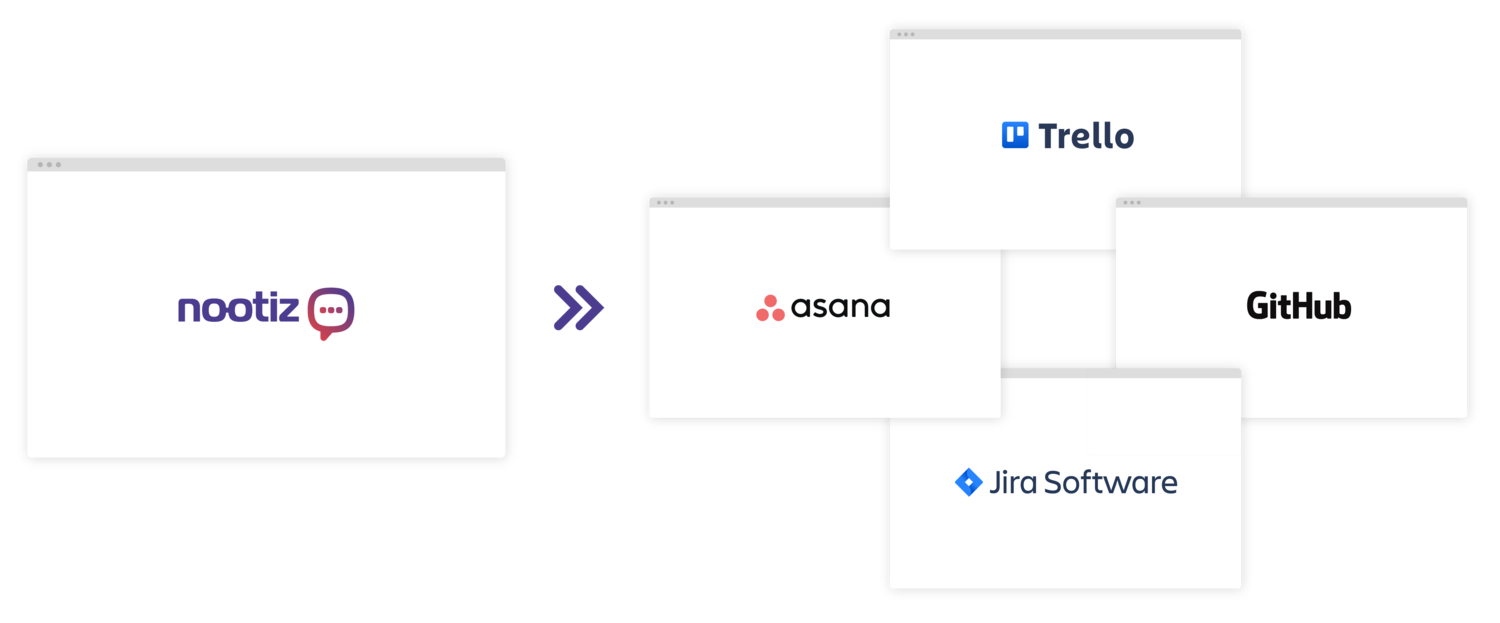
Task tools: Asana, Trello, Jira & GitHub
nootiz does not replace your project management tool – it feeds it cleanly. Any note can become a ticket in the system your team already works in, with screenshot, URL, element and browser info.
Asana
Feedback becomes a task in the right project, with description, assignee and due date.
Trello
Turn a note into a Trello card in the list you pick – screenshot, URL and browser info included.
Jira
A note becomes an issue in your backlog – without clients ever needing a Jira login.
GitHub
Bugs land as an issue in your repository, including the technical context to reproduce them.
Platforms
Each platform has its own guide with the install path and the typical pitfalls:
WordPress
You do not need a dedicated plugin for WordPress: add the nootiz snippet once to your theme header (or through a code-snippet plugin) and you can leave notes on any element of any page.
→Webflow
In Webflow you paste the nootiz snippet into Project Settings → Custom Code (head) and publish the project.
→Shopify
For Shopify you add the nootiz snippet to your theme's theme.liquid – ideally in a duplicated theme so the live store stays untouched.
→Wix
In Wix you add the nootiz snippet under Settings → Custom Code in the head section and publish the site..
→Squarespace
On Squarespace you add the nootiz snippet under Settings → Advanced → Code Injection (header).
→Framer
In Framer you add the nootiz snippet under Site Settings → General → Custom Code (head) and publish.
→React & Next.js
In React, Next.js or Vue projects you load the nootiz snippet in the root layout or document and gate it behind an environment variable so it only runs in staging and preview deployments.
→TYPO3
In TYPO3 you include the nootiz snippet via TypoScript (page.headerData) or directly in your Fluid layout.
→HubSpot CMS
In HubSpot CMS you add the nootiz snippet under Settings → Website → Pages in the “Site header HTML” field.
→Staging & geschützte Umgebungen
On staging, preview and password-protected sites nootiz works by serving the snippet in the staging environment.
→No plugin zoo
One snippet for all platforms means no dependency on plugin updates, no platform-specific limitations and no second installation path to document.
Frequently asked questions
Which integrations are available in nootiz?
There are four task tool connections today: Asana – feedback becomes a task in the right project, with description, assignee and due date. Trello – turn a note into a card in the list you pick, screenshot, URL and browser info included. Jira – a note becomes an issue in your backlog, without clients ever needing a Jira login. GitHub – bugs land as an issue in your repository, including the technical context to reproduce them. Any note can become a task, card or issue – screenshot, URL, element and browser info included.
Is there a Slack integration?
No. Slack is not available as an integration right now. You get notifications by email, and hand tasks over to Asana, Trello, Jira or GitHub.
Are more integrations planned?
We extend the connections based on concrete customer demand and deliberately don't announce dates for tools that aren't live yet. If you need a specific one, tell us – requests feed straight into prioritisation.
What if my tool isn't listed?
nootiz works fully without any integration: notes carry status, assignment and comments so the revision round can be closed inside nootiz. For anything else you copy the note context into your tool.
Stop collecting feedback in email threads
Add the snippet, share the link, collect feedback right on the page – live in under 5 minutes.